Smart Scale Household Profiles: Avoiding Mixed Bluetooth Records
Connected scales can be shared by several people, but app profiles and phone pairing require care. Learn how to prevent misassigned weigh-ins and review records before relying on trends.
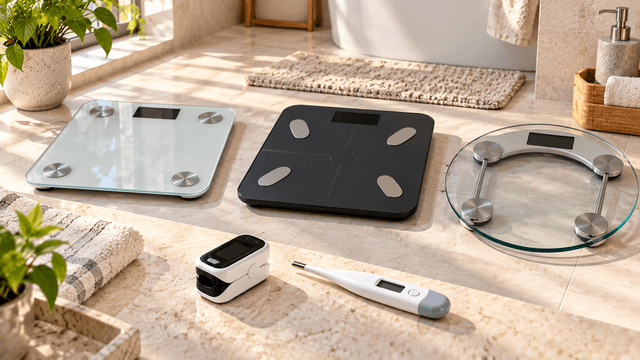
Smart weighing scales have made it easier to record body weight and follow changes over time. Many connected models automatically transfer measurements to a smartphone, create progress graphs, and allow several family members to use the same device.
However, sharing a smart scale introduces a common problem: measurements can sometimes be assigned to the wrong person.
For example, two family members may have similar body weights. If the scale attempts to identify users automatically, it may have difficulty deciding which profile should receive a new measurement.
Bluetooth connections can create another source of confusion. A reading may synchronize to an unexpected phone, remain stored temporarily on the scale, or appear in a shared account rather than the intended personal profile.
The result can be misleading weight histories, sudden changes in progress graphs, and unnecessary concerns about measurements that actually belong to someone else.
Fortunately, many of these problems can be reduced through careful profile setup, correct phone pairing, and regular record reviews.
The most important habit is to confirm the active user profile and synchronization status before relying on any smart-scale measurement history.
This guide explains how multi-user smart scales work, why Bluetooth records sometimes become mixed, how to separate household profiles, and how to maintain accurate and private measurement records.
What Is a Smart Weighing Scale?
A smart weighing scale is a digital scale that includes additional features for recording or transferring measurements.
A conventional digital weighing scale typically displays body weight on its screen.
A connected smart scale may also communicate with an application on a smartphone or another compatible device.
Depending on the model, features may include:
- Digital body-weight measurement
- Bluetooth connectivity
- Wi-Fi connectivity
- Automatic measurement history
- Multiple household user profiles
- User recognition
- Progress graphs
- Body composition estimates
- App-based reminders
- Integration with other fitness applications
Not every smart scale provides every feature.
Some models measure only body weight and transfer the result to an application.
Others use bioelectrical impedance analysis to estimate additional body composition metrics.
These estimates have important limitations and should not automatically be considered equivalent to clinical measurements.
What Makes a Smart Scale Different From a Regular Scale?
The primary difference is connectivity and data management.
A regular digital scale displays the current reading.
A smart scale may save that reading and associate it with a particular user.
This allows the application to show measurements over time.
However, a connected device is only useful when the records are associated with the correct person.
A technically successful Bluetooth transfer does not necessarily mean the measurement has been assigned correctly.
How Do Smart Scale Household Profiles Work?
Many smart scales support multiple people using a single physical device.
Each person may have a separate profile containing information relevant to the scale and its application.
Depending on the product, a profile may include:
- Name or nickname
- Age or date of birth
- Height
- Sex or other profile information requested by the device
- Measurement history
- Body-weight records
- Body composition estimates
- Personal goals
- Connected app settings
The exact information required varies.
Some scales can store several profiles directly.
Others rely heavily on the associated smartphone application.
Why Are Separate Profiles Important?
A separate profile helps prevent one person’s measurements from being added to another person’s history.
Consider a household with three adults.
One person uses the scale every morning.
Another weighs occasionally.
The third uses the scale after exercise.
If all readings are saved under one profile, the progress graph may show unexpected fluctuations that do not represent any one person’s actual measurements.
Separate user profiles make it easier to maintain meaningful records.
Are Profiles the Same as Accounts?
Not necessarily.
Some apps allow several measurement profiles inside one account.
Other systems support independent accounts, each associated with a different person.
Certain brands support both arrangements.
This distinction matters for privacy.
A person with access to the main account may be able to view the measurements of profiles managed within that account.
Independent accounts may provide greater separation, depending on the manufacturer’s system.
Always check the specific product’s account structure before sharing it with other household members.
Why Smart Scales Sometimes Mix Up Household Measurements
Several factors can cause a connected scale to associate a reading with the wrong person.
1. Similar Body Weights
Some smart scales use weight history to help recognize who is standing on the device.
If two people have similar weights, the scale may struggle to distinguish them.
For example, consider two fictional household members:
- Person A usually weighs approximately 68 kg.
- Person B usually weighs approximately 69 kg.
If both use the same scale, their readings may overlap.
An automatic recognition system may then require additional confirmation.
The exact recognition behaviour depends on the manufacturer and model.
Some devices request user selection when measurements are similar.
Others rely on app profiles or connected phones.
2. The Wrong Profile Is Active
A person may open the smart-scale application without checking which user is selected.
The new reading may then be recorded under the wrong profile.
3. Bluetooth Is Connected to Another Phone
Some Bluetooth scale systems synchronize measurements with the currently connected device or account.
If another household member’s phone is connected, the reading may be sent somewhere unexpected.
This behaviour is model-specific.
4. Measurements Are Stored for Later Synchronization
Certain smart scales can store readings when the smartphone is unavailable.
These readings may synchronize later.
Depending on the device, delayed synchronization can create uncertainty about which user made the measurement.
5. Guest Measurements Are Assigned Incorrectly
A visitor may use the scale without selecting an appropriate guest mode.
Their reading could be confused with a household member’s measurement.
6. Duplicate Accounts or Profiles Exist
A person might accidentally create two profiles with similar information.
Measurements may then be divided between them.
7. Incorrect App Setup
Incomplete profile details, unsupported pairing arrangements, or outdated configuration can interfere with user identification.
8. App Synchronization Problems
Network interruptions, Bluetooth disconnections, and software issues may delay or duplicate certain records.
The key is to identify whether the problem involves measurement, user assignment, device pairing, or app synchronization.
These are related but separate processes.
Automatic User Recognition: How Does It Work?
Some smart scales attempt to identify the person standing on the device without requiring manual profile selection every time.
The recognition method depends on the model.
Common approaches include:
- Matching a new weight with previous measurements
- Using stored user profiles
- Requesting confirmation when more than one person is a possible match
- Associating measurements with a connected account
- Requiring selection through a smartphone application
Automatic recognition can make daily use convenient.
However, it is not infallible.
Why Similar Weights Create Problems
If several users have similar weight histories, the scale may not have enough information to identify them confidently.
For example, a change in clothing, recent exercise, or ordinary body-weight fluctuation may cause readings to overlap.
This can confuse recognition systems that rely heavily on previous weight ranges.
What If Your Weight Changes Significantly?
A substantial change from previous readings may also affect recognition on some devices.
The scale may treat the measurement as unknown or request user confirmation.
This does not necessarily mean that the scale has malfunctioned.
It may be operating according to its recognition rules.
Can a Smart Scale Always Recognize the Correct Person?
No.
Even devices advertised as supporting automatic user recognition may occasionally require manual confirmation.
Users should review the assigned profile before interpreting their measurement history.
How to Set Up Smart Scale Profiles for Multiple Family Members
Correct initial setup is one of the most effective ways to reduce record confusion.
Step 1: Install the Official Application
Download the application recommended by the scale manufacturer.
Use an official app store or another trusted source specified by the manufacturer.
Avoid installing unrelated applications that claim compatibility without appropriate verification.
Step 2: Create the Primary Account
Follow the manufacturer’s setup instructions.
Some scales require one initial account to configure the device.
Others support different account arrangements.
Step 3: Connect the Scale
Pair the scale through the official application according to the manual.
Some devices require pairing within the manufacturer’s app rather than through the phone’s general Bluetooth settings.
Do not assume that every smart scale uses the same connection procedure.
Step 4: Create a Separate Profile for Each Person
Add household members through the app’s supported user-management feature.
Enter the information requested for each individual.
Step 5: Review Profile Details
Check that height, age, and other required information belong to the correct person.
These details may influence body composition estimates or other calculations.
Step 6: Decide Whether to Use Shared or Independent Accounts
Where supported, choose the arrangement that best matches your privacy and convenience requirements.
A shared account may be easy to manage but may allow the account owner to view several people’s records.
Separate accounts may provide better individual control.
Step 7: Connect Additional Phones When Supported
If several people want to use their own phones, follow the manufacturer’s specific multi-device instructions.
Do not assume that simultaneous Bluetooth connections are supported.
Step 8: Take an Initial Measurement for Each User
Ask each person to make a measurement according to the instructions.
Confirm that the result reaches the intended profile.
Step 9: Review the Saved History
Open each person’s measurement history.
Check that the initial record is associated with the correct user.
Step 10: Test the Household Setup
Before relying on long-term graphs, verify that the system behaves correctly when different household members use the scale.
If automatic recognition is unreliable, use the manufacturer’s recommended manual identification method.
Shared Account vs Separate Accounts: Which Is Better?
The appropriate arrangement depends on the scale and the household’s privacy preferences.
| Feature | Shared account with multiple profiles | Separate personal accounts |
|---|---|---|
| Account management | Often centralized | Managed individually |
| User setup | May be simpler | May require additional pairing |
| Privacy | Account owner may access multiple profiles | May offer greater individual separation |
| Measurement records | Stored under profiles in one account | Associated with individual accounts |
| Phone requirements | May work with one phone | Often uses individual phones |
| Switching users | Depends on app design | Depends on connectivity rules |
| Data sharing | May be easier within the household | May require permission or export |
| Main concern | Visibility and accidental profile selection | Pairing and synchronization confusion |
The exact features differ by brand.
For example, some smart-scale systems support separate accounts but permit only one active Bluetooth connection at a time.
Others may handle synchronization through Wi-Fi or use different user-recognition arrangements.
Choose the account structure based on the actual model’s instructions rather than assuming all smart scales behave alike.
Bluetooth Smart Scales: How Synchronization Works
Bluetooth allows compatible devices to exchange data wirelessly over relatively short distances.
A Bluetooth smart scale may transfer measurements to an application running on a nearby phone.
However, pairing, connecting, and synchronizing are different steps.
Pairing
Pairing establishes a recognized relationship between compatible devices.
Certain scales handle this through their official applications.
Connecting
A connection allows the scale and phone to communicate.
A previously paired device may not be actively connected at every moment.
Synchronizing
Synchronization transfers measurement information into the application’s records.
A reading shown on the scale does not automatically mean the data has reached the app.
Why These Differences Matter
A scale may successfully measure your body weight but fail to synchronize because the phone is unavailable.
Alternatively, it may connect to a phone while the wrong user profile is active.
Therefore, always distinguish between a successful measurement and a correctly saved personal record.
Can Multiple Phones Connect to One Smart Scale?
Some smart scales support multiple phones or accounts.
However, their connection rules vary.
Certain Bluetooth models may allow only one active phone connection at a time.
For example, some eufy smart-scale configurations require the currently connected phone or app to disconnect before another user’s phone can connect.
Other smart-scale systems may use different arrangements.
What Should Household Members Do?
Check the instructions for your specific model.
Where the manufacturer requires an active app connection:
- Open the intended user’s app.
- Select the correct account or profile.
- Confirm that the scale is connected.
- Take the measurement.
- Verify that it appears in the correct history.
- Disconnect or close the app when necessary before another person connects.
Do not assume that switching Bluetooth on and off is required for every model.
Follow the manufacturer’s recommended process.
Bluetooth vs Wi-Fi Smart Scales
Bluetooth and Wi-Fi scales may have different synchronization workflows.
Bluetooth Scales
Bluetooth models often communicate with nearby smartphones.
Depending on the product, the app may need to be open or connected when a measurement is taken.
Some models can temporarily store readings.
Wi-Fi Scales
Certain Wi-Fi-enabled scales can upload measurements through a configured wireless network.
This may reduce the need to keep a phone beside the scale for every measurement.
However, correct user identification is still important.
Important Differences
| Factor | Bluetooth scale | Wi-Fi-enabled scale |
|---|---|---|
| Typical connection | Nearby compatible phone | Configured wireless network |
| Phone required at every weigh-in | Depends on model | Often not required after setup |
| Offline storage | Depends on model | Depends on model |
| Multi-user recognition | Depends on model | Depends on model |
| Account management | Usually through an app | Usually through an app |
| Incorrect profile assignment | Still possible | Still possible |
| Internet required | Not always | Often required for cloud syncing |
| Privacy considerations | App and device data | App, network and cloud data |
Neither connection method guarantees that records will be assigned correctly.
A Wi-Fi scale can still confuse similar users.
A Bluetooth scale can maintain accurate histories when the household follows the intended profile and pairing procedure.
How to Prevent Mixed Bluetooth Weight Records
A few practical habits can greatly reduce record confusion.
1. Confirm the Active User
Before weighing, check who is selected in the app or on the scale when applicable.
2. Connect the Intended Phone
If the model synchronizes to the currently connected device, confirm that the correct phone is active.
3. Avoid Simultaneous Pairing Conflicts
Follow the manufacturer’s instructions for switching between phones.
4. Review Automatic Recognition
If the scale displays a user name, initials, or profile symbol, verify that it identifies the intended person.
5. Use Guest Mode for Visitors
Where supported, guest mode may help prevent visitors’ measurements from appearing in a household member’s history.
6. Check Saved Records
After syncing, inspect the most recent entry.
Confirm its date, time, value, and user profile.
7. Review Unassigned Measurements
If the app includes an unknown-measurements section, check it before assuming a reading has been lost.
8. Avoid Duplicate Profiles
Create only the necessary profiles and keep account details organized.
9. Check Third-Party Integrations
If weight readings are being exported to another fitness application, verify that the destination account belongs to the correct person.
10. Resolve Errors Before Trusting Trends
An incorrect measurement can distort a graph.
Correct or exclude misassigned readings using the manufacturer’s supported tools before relying on the trend.
What to Do When Someone Else’s Weight Appears in Your Profile
Discovering an unfamiliar reading can be confusing.
For example, you might notice an apparent overnight change of several kilograms.
Before assuming the reading reflects your actual weight, check whether another household member used the scale.
Step 1: Identify the Suspicious Record
Open the measurement history.
Check the date, time, and recorded value.
Step 2: Ask Whether Another Person Used the Scale
If several people share the device, determine whether the reading may belong to someone else.
Respect household privacy while investigating.
Step 3: Review the Selected Profile
Check whether the correct user was active during the measurement.
Step 4: Check App Synchronization
Determine whether the reading was transferred from the scale recently or after a delay.
Step 5: Look for an Editing or Reassignment Feature
Some manufacturers allow users to reassign unknown measurements or correct profile assignments.
Others may provide only deletion or different record-management methods.
Step 6: Correct the Record Using Supported Controls
Follow the specific manufacturer’s instructions.
Do not assume that changing a person’s profile information will automatically move historical records.
Step 7: Review Connected Applications
If the incorrect measurement was exported to another platform, determine whether that copy also needs correction.
Step 8: Verify the Corrected History
Check that the reading no longer appears incorrectly.
If the manufacturer does not provide a suitable correction method, contact support.
How to Reassign Unknown Smart Scale Measurements
Some smart scales separate measurements they cannot confidently associate with a user.
These may be labelled:
- Unknown measurements
- Unassigned measurements
- Guest readings
- Unrecognized user
- Measurements awaiting confirmation
The exact terminology varies.
Why Unknown Measurements Occur
A scale may create an unassigned record when:
- No matching profile exists.
- Two users have similar weights.
- A user’s weight has changed substantially.
- Guest mode was selected.
- The scale could not confidently recognize the person.
General Reassignment Procedure
Where supported:
- Open the manufacturer’s application.
- Locate the unassigned or unknown measurement section.
- Review the reading and timestamp.
- Identify the correct household member.
- Use the supported assignment feature.
- Confirm that the measurement appears in the intended history.
For example, certain Withings scales support assigning unknown measurements through the Withings app.
However, menu names, supported corrections, and availability vary by device and software version.
Always follow current manufacturer instructions.
What If the Measurement Cannot Be Reassigned?
Do not invent or overwrite records manually without understanding the consequences.
Check whether the application supports deletion, export, or another correction method.
If necessary, contact the manufacturer.
How to Handle Family Members with Similar Body Weights
This is one of the most important situations to address when choosing a multi-user scale.
Automatic recognition systems that rely partly on weight history may struggle when two users have similar measurements.
Use Manual Identification When Available
Some scales allow users to confirm their identity directly on the device.
Select the Correct App Profile
If the manufacturer recommends manual selection, open the appropriate profile before measuring.
Connect the Intended Account
For certain Bluetooth systems, the connected phone or account determines where measurements synchronize.
Check the Result Immediately
Review the saved record after weighing.
Avoid Assuming Recognition Improves Automatically
Some devices may adapt to repeated measurements, but there is no universal guarantee.
Consider the Manufacturer’s Recognition Limits
Some brands document how similar weights affect automatic assignment.
Those limits are model-specific and should not be treated as universal smart-scale rules.
When automatic recognition is unreliable, a deliberate manual confirmation routine is more useful than repeatedly trusting uncertain assignments.
Guest Mode: Why It Matters in Shared Households
Visitors may occasionally use a household weighing scale.
If the device attempts automatic user identification, a visitor’s weight may be confused with an existing profile.
Guest mode can help in some systems.
What Does Guest Mode Do?
Depending on the device, guest mode may allow someone to take a measurement without creating a normal personal history.
However, the exact behaviour varies.
Some guest measurements may still appear as unassigned records.
Others may not be stored in the same way.
When Is Guest Mode Useful?
- Occasional visitors
- Friends staying overnight
- Relatives who do not require ongoing tracking
- People who do not want a persistent profile
What Should You Check?
Read the manufacturer instructions to understand:
- Whether guest readings are stored
- Whether body composition estimates are available
- Whether guest measurements synchronize
- Whether the data can be deleted
- Whether a guest can access other users’ information
Guest mode should not automatically be considered private or anonymous.
Why Smart Scale Data Can Appear Twice
Duplicate measurements are another common concern.
For example, a user may see the same weight recorded twice within a short period.
Possible causes include:
- Repeated weighing
- Delayed synchronization
- Importing historical data
- Overlapping app integrations
- Manual entry followed by automatic syncing
- Software or account configuration problems
Check the Timestamps
Compare the date and time of each entry.
Look at Data Sources
Some applications identify whether a measurement came from the scale, manual entry, or another connected service.
Review Third-Party Connections
A reading may move through more than one platform.
If two services both write the same measurement to a destination, duplication may occur.
Avoid Deleting Records Blindly
Before deleting an apparent duplicate, check whether it is truly the same measurement.
Some people intentionally take repeated readings.
Correct the Source
If the duplication comes from an app integration, review the permitted data-sharing or synchronization settings.
Smart Scale Data in Apple Health, Google Health Connect and Fitness Apps
Some smart-scale applications can share data with external health or fitness platforms.
This may allow weight measurements to appear alongside other health information.
However, these integrations are optional and vary by product.
Why Data Sharing Can Be Useful
It may help users maintain a consolidated record across supported applications.
Why It Can Create Confusion
When several accounts, profiles, or apps are involved, a reading may be duplicated or synchronized to an unintended destination.
Check the Connected Account
Before enabling integration, confirm that the receiving health profile belongs to the intended person.
Review Permissions
Understand which categories of information the app can read or write.
Avoid Connecting a Shared Profile to the Wrong Personal Account
If a household shares one account, consider how its measurements are separated before enabling external synchronization.
Check Data Sources After Setup
Take a test measurement and verify that it appears only where intended.
Review Before Interpreting Trends
A graph containing readings from multiple people is not a reliable personal trend.
Smart Scale Privacy: Who Can See Household Measurements?
Body weight and related health information can be sensitive personal data.
Sharing a physical scale does not necessarily mean every user wants to share their measurement history.
Privacy depends on the app’s account structure, permissions, and connected services.
Shared Account Visibility
In some applications, the account owner can view data associated with other measurement profiles.
Independent Account Visibility
Separate accounts may provide stronger individual separation, depending on the system.
Cloud Synchronization
Certain applications upload measurements to online services.
Users should review the manufacturer’s privacy information to understand how data is stored and managed.
App Permissions
Bluetooth, nearby-device, and other permissions may be required for certain features.
Review requested permissions and grant only those appropriate for the device’s intended use.
Health App Connections
External fitness platforms may receive measurements if the user enables synchronization.
Family Privacy
Household members should know whether their records are visible to anyone else using the account.
Do not assume that profile separation automatically means complete data privacy.
How to Protect Smart Scale Measurement Privacy
1. Choose the Right Account Arrangement
Where supported, consider independent accounts for adults who prefer separate records.
2. Use Individual Profiles
Avoid recording multiple people’s measurements under one general profile.
3. Secure Smartphones
Use appropriate screen locks and account protections.
4. Review App Permissions
Check the information and device features accessible to the scale’s application.
5. Review Cloud Features
Understand whether measurements are stored locally, online, or both.
6. Check Sharing Controls
Some applications allow family or health-data sharing.
Use these features deliberately.
7. Review Exported Reports
Before sharing measurements, confirm that the exported file contains only the intended person’s information.
8. Avoid Sharing Account Passwords Unnecessarily
Where independent accounts are supported, they may reduce the need to share login details.
9. Check Deletion Options
Review how the application handles deleted profiles and measurement histories.
10. Review Privacy Settings Periodically
Software updates can change app features and settings.
Check the current documentation when necessary.
How to Set Up a Smart Scale for a Family of Four
Consider a fictional household containing four adults.
Each person wants to record weight without mixing measurements.
Step 1: Check the Supported Number of Users
Confirm that the scale supports at least four profiles.
Step 2: Review Account Options
Determine whether the system supports separate accounts, a shared account, or both.
Step 3: Discuss Privacy Preferences
Each person should understand whether other household members can see their readings.
Step 4: Create Four Distinct Profiles
Use clear names or nicknames.
Avoid confusingly similar profile labels.
Step 5: Enter Accurate Required Details
Check the information requested by the manufacturer.
Step 6: Pair Phones Correctly
Follow the supported multi-device connection process.
Step 7: Test Each Profile Individually
Have one person use the scale.
Confirm the result.
Then repeat with the next person.
Step 8: Check Similar-Weight Users
If two family members have similar weights, determine whether the scale requires manual identification.
Step 9: Review the Four Histories
Verify that each profile contains only its intended readings.
Step 10: Establish a Simple Household Rule
For example:
Before weighing, select or confirm your profile. After weighing, verify the saved result.
A simple rule can prevent many recurring errors.
Smart Scale Body Composition Measurements: Important Limitations
Some smart scales estimate metrics beyond body weight.
These may include:
- Body fat percentage
- Muscle mass
- Body water percentage
- Bone mass estimates
- Visceral fat estimates
- Other calculated indicators
Many consumer scales use bioelectrical impedance analysis, or BIA, to generate some of these estimates.
What Is Bioelectrical Impedance Analysis?
BIA uses a small electrical signal and measures the body’s resistance or impedance to help estimate body composition.
The calculations depend on the device’s design, algorithms, and user information.
Why Profile Accuracy Matters
Height, age, and other profile details can influence body composition estimates.
If the wrong profile is selected, the displayed estimates may not represent the intended person’s information.
Why Hydration Matters
Body composition estimates can be affected by hydration and other measurement conditions.
Are Smart Scale Body Fat Readings Exact?
No.
Consumer body composition values are estimates.
They should not be treated as precise clinical measurements of body fat or muscle mass.
What About Changes Over Time?
Consistent measurement conditions may make personal records easier to compare.
However, apparent changes may still reflect measurement variability rather than true biological changes.
Avoid making major health decisions based solely on smart-scale body composition estimates.
Smart Scale Safety: Pacemakers, Pregnancy and Other Considerations
Body composition smart scales require additional safety attention because some models use electrical impedance measurements.
Pacemakers and Implanted Medical Devices
Certain BIA-enabled scales warn against using impedance-based measurements with pacemakers or other implanted electronic medical devices.
The electrical signal may interfere with certain medical equipment.
Some devices allow impedance measurements to be disabled.
However, the correct approach depends on the scale and the individual’s medical device.
Do not use BIA features with an implanted electronic medical device unless the equipment instructions and your healthcare professional confirm that it is appropriate.
Pregnancy
Body composition estimates from BIA scales may be unreliable during pregnancy.
Some manufacturers recommend disabling impedance-based features.
Certain scales offer a pregnancy or weight-only mode.
Follow the specific device guidance and your maternity healthcare professional’s recommendations.
Children
Not every body composition scale is validated for children.
Age restrictions and measurement limitations vary.
Follow the manufacturer’s guidance and seek pediatric advice when appropriate.
Users with Medical Conditions
Certain medical circumstances may affect measurement suitability or interpretation.
Consult a healthcare professional when necessary.
A Household Setup Detail
On some scales, disabling body composition features can affect all users linked to the device.
Review whether the setting applies to one profile or the entire scale before changing it.
How to Take Consistent Smart Scale Measurements
Correct profile selection prevents identity errors.
Consistent measurement technique helps reduce unnecessary variation.
Use a Stable Floor
Place the scale on a firm, level surface according to its instructions.
Avoid thick carpet unless the manufacturer specifically supports that use.
Check the Scale Position
Do not move the scale between every measurement unnecessarily.
Some models may require recalibration after relocation.
Follow the Recommended Foot Position
Place your feet according to the manufacturer’s markings or instructions.
Keep Your Body Still
Avoid shifting your weight or leaning.
Use Similar Conditions When Practical
For users tracking changes over time, weighing under similar conditions can make records easier to interpret.
Check Clothing Differences
Clothing and carried objects can affect the measured weight.
Record the Correct Profile
Confirm that the result belongs to the intended person.
Avoid Excessive Checking
Frequent repeated weighing is not necessary for everyone.
Follow an appropriate monitoring schedule based on your goals and any healthcare guidance.
Why Smart Scale Weight Can Change Between Measurements
A scale can show different results for several reasons.
Normal Body-Weight Variation
Body weight naturally changes because of food intake, fluids, digestion, and other factors.
Different Clothing
Heavy clothing or objects carried during measurement affect the result.
Floor Conditions
Uneven or unsuitable flooring can influence scale performance.
Body Position
Shifting weight or standing incorrectly may affect the reading.
Calibration
Some devices require specific calibration procedures.
Measurement Timing
Readings taken at different times of day may vary.
Incorrect User Assignment
A reading may belong to another household member entirely.
Before interpreting a large unexpected change, confirm the user profile and measurement conditions.
How to Read Smart Scale Trend Graphs Correctly
Progress graphs can be convenient, but their value depends on record quality.
Check for Sudden Unexplained Jumps
A large isolated change may indicate a measurement issue or a misassigned household reading.
Review Dates and Times
Delayed syncing can cause records to appear in an unexpected order.
Check for Duplicates
Repeated entries may distort a graph.
Confirm the User
Make sure the graph contains only the intended person’s measurements.
Consider Normal Variation
Body weight fluctuates naturally.
Not every daily change represents a meaningful health trend.
Avoid Overinterpreting Body Composition Estimates
Changes in calculated body fat or muscle mass may reflect measurement conditions and algorithm variability.
Seek Professional Guidance When Needed
Medical interpretation should consider the person’s health circumstances rather than relying only on a consumer app.
Common Smart Scale Household Setup Mistakes
Mistake 1: Creating Only One Profile for Everyone
Measurements become mixed.
Better approach: Create separate profiles or accounts according to the supported system.
Mistake 2: Assuming Automatic Recognition Is Always Correct
Similar weights can confuse certain devices.
Better approach: Verify the selected user.
Mistake 3: Ignoring the Connected Phone
Some Bluetooth systems synchronize to the active account.
Better approach: Confirm connection status when required.
Mistake 4: Forgetting Unassigned Measurements
A reading may remain in an unknown-measurements section.
Better approach: Review and assign it using supported controls.
Mistake 5: Deleting Records Without Checking
An unfamiliar measurement might actually belong to another family member.
Better approach: Investigate the timestamp and intended user first.
Mistake 6: Enabling Multiple Health App Integrations Without Review
Overlapping synchronization can create duplicate or misplaced records.
Better approach: Review data-sharing settings carefully.
Mistake 7: Sharing Account Access Without Considering Privacy
A shared login may expose personal measurement histories.
Better approach: Understand account visibility before setup.
Mistake 8: Entering Incorrect Profile Details
Inaccurate information can affect calculated metrics.
Better approach: Review required profile information.
Mistake 9: Trusting Body Composition Estimates as Exact Values
Consumer BIA estimates have limitations.
Better approach: Treat them as estimates, not clinical diagnoses.
Mistake 10: Ignoring Device Safety Instructions
BIA functions may be unsuitable for certain users.
Better approach: Review warnings for implanted medical devices, pregnancy, and other relevant circumstances.
Troubleshooting Common Smart Scale Problems
Problem: My Weight Appears in Another Family Member’s Profile
Possible cause: Automatic recognition selected the wrong user or the wrong account was connected.
What to try: Review profile selection, connection status, and supported record-reassignment tools.
Problem: The Scale Does Not Recognize Me
Possible cause: Missing profile, similar household weights, a significant change from previous readings, or a recognition issue.
What to try: Follow the manufacturer’s user-recognition troubleshooting instructions.
Problem: The Scale Shows Weight but the App Does Not
Possible cause: Bluetooth connection failure, delayed synchronization, or application configuration.
What to try: Check the manufacturer’s pairing and synchronization instructions.
Problem: Another Person’s Phone Receives My Reading
Possible cause: That phone or account may be connected to the scale.
What to try: Follow the manufacturer-approved process for switching connections.
Problem: My App Shows Duplicate Weight Entries
Possible cause: Manual entry, repeated measurement, delayed sync, or overlapping integrations.
What to try: Review timestamps and data sources before correcting the history.
Problem: A Measurement Is Marked Unknown
Possible cause: The scale could not confidently identify the user.
What to try: Use the supported assignment method.
Problem: My Weight Graph Has a Sudden Large Change
Possible cause: Normal variation, incorrect measurement conditions, or another person’s reading.
What to try: Verify the record’s user, time, and measurement circumstances.
Problem: Body Fat Percentage Changes Unexpectedly
Possible cause: Hydration, measurement variability, profile details, or other factors.
What to try: Review conditions and avoid treating individual estimates as exact measurements.
Problem: I Cannot Connect a Second Phone
Possible cause: Model-specific connection limits or incorrect account setup.
What to try: Follow the manufacturer’s multi-user connection procedure.
Problem: Deleting a Profile Removes Unexpected Information
Possible cause: Profile and history management may be linked.
What to do: Stop making changes and consult the manufacturer’s documentation or support before deleting more data.
What to Look for When Buying a Multi-User Smart Scale
If several people will share the device, account-management features deserve particular attention.
1. Supported Number of Users
Check the maximum number of household profiles.
2. User Recognition Method
Determine whether the scale identifies users automatically, manually, or through a connected app.
3. Similar-Weight Handling
Look for documentation explaining what happens when household members have similar weights.
4. Bluetooth Connection Rules
Confirm whether multiple phones are supported and how active connections are managed.
5. Wi-Fi Availability
Consider whether independent Wi-Fi synchronization would be useful.
6. Separate Accounts
Check whether users can maintain individual accounts.
7. Profile Privacy
Determine who can view measurements within a shared account.
8. Unknown-Measurement Management
A clear method for assigning unrecognized readings can be valuable.
9. Record Correction
Check whether the app supports editing, deleting, or reassigning incorrect measurements.
10. Third-Party Integrations
Review compatibility with the fitness and health platforms you actually use.
11. BIA Safety Settings
If the scale includes body composition measurements, check whether weight-only mode is available when required.
12. Data Export and Deletion
Look for clear options to manage and retain personal records.
13. Manufacturer Support
Accessible troubleshooting guidance matters when household profiles or Bluetooth synchronization become confused.
For shared use, reliable profile management may be more valuable than a long list of body composition estimates.
Frequently Asked Questions
1. Can multiple people use the same smart scale?
Yes. Many smart scales support multiple users.
However, the maximum number of profiles and account arrangements vary by model.
2. How does a smart scale know who is using it?
Some scales compare the new reading with previous weight histories.
Others require profile selection or use a connected account.
The recognition method depends on the device.
3. Can smart scales confuse family members with similar weights?
Yes.
Certain automatic recognition systems may have difficulty distinguishing users with similar body weights.
4. Can two phones connect to one Bluetooth scale?
Some devices support multiple phones or accounts, but they may not support simultaneous active connections.
Follow the manufacturer’s instructions.
5. Why is my weight appearing in my partner’s app?
The wrong profile or connected phone may have received the reading.
Review the pairing arrangement and account settings.
6. Can I move a reading to the correct profile?
Some manufacturers support record reassignment.
Other apps have different correction methods.
Check the specific product instructions.
7. What are unknown measurements?
They are readings that the scale or app could not confidently assign to a known user.
Some systems allow manual assignment.
8. Does guest mode protect my privacy?
Not necessarily.
Guest mode behaviour varies.
Some guest readings may still be stored or visible as unassigned measurements.
9. Should every family member have a separate account?
Separate accounts may be preferable for individual privacy when supported.
However, some households may find a shared account with separate profiles convenient.
10. Can smart scale readings sync without opening the app?
Some models support automatic or delayed synchronization.
Others require the application to be open and connected.
11. What happens if Bluetooth is off during weighing?
Depending on the model, the scale may display the result without syncing or store it for later transfer.
Some devices require a current connection.
12. Can a Wi-Fi smart scale mix user records?
Yes.
Wi-Fi connectivity does not eliminate user-recognition errors.
13. Why do I see duplicate measurements?
Possible causes include repeated weigh-ins, manual entry, delayed synchronization, or overlapping app integrations.
14. Can I connect my smart scale to Apple Health or Google Health Connect?
Some smart-scale applications support these integrations.
Check compatibility and the permissions available for your device and app version.
15. Are smart scale body fat percentages accurate?
They are estimates and can vary with device algorithms, hydration, and other measurement conditions.
Do not treat them as exact clinical measurements.
16. Can pregnant people use smart scales?
Weight-only measurement may be appropriate on suitable devices, but BIA functions have additional limitations and manufacturer-specific precautions.
Consult your healthcare professional and follow device instructions.
17. Can someone with a pacemaker use a body composition scale?
BIA features may be contraindicated for people with implanted electronic medical devices.
Follow the manufacturer’s warnings and healthcare advice.
18. Can children use a smart scale?
Check manufacturer age restrictions and whether the device is validated for the intended use.
Body composition estimates may not be appropriate for children.
19. Can I delete another person’s measurements from my account?
Available deletion and reassignment controls vary.
Review the manufacturer’s instructions and consider whether the correct person should manage their own records.
20. How do I prevent mixed household records permanently?
A consistent routine helps: create distinct profiles, confirm the correct user, follow pairing instructions, and review saved measurements.
However, no automatic recognition system is guaranteed to be error-free.
21. Is Bluetooth more private than Wi-Fi?
Neither connection method guarantees privacy.
Privacy depends on app design, account settings, security measures, and data-handling practices.
22. Do I need to weigh myself every day?
Not necessarily.
The appropriate frequency depends on your purpose and any healthcare guidance.
Avoid excessive checking that creates unnecessary distress.
23. Can an incorrect reading distort a progress graph?
Yes.
A measurement belonging to another person may create a misleading spike or drop.
24. What if my app cannot reassign a record?
Review its supported correction options or contact the manufacturer.
Do not alter unrelated profile information to force a match.
25. What is the most important smart scale feature for families?
Clear, reliable multi-user profile management is particularly valuable, along with suitable measurement performance, account privacy, and straightforward synchronization.
Final Smart Scale Household Setup Checklist
Before relying on shared smart-scale records, confirm the following:
Initial Setup
- Install the official application.
- Read the device’s multi-user instructions.
- Check the number of supported profiles.
- Decide between shared and independent accounts.
- Create a separate profile for each regular user.
- Verify required personal details.
- Connect phones according to manufacturer instructions.
- Review privacy and data-sharing settings.
- Check BIA safety precautions.
- Confirm the scale is on a suitable floor.
Before Each Measurement
- Confirm the intended user.
- Select the correct profile when required.
- Check the connected account or phone.
- Use appropriate measurement conditions.
- Stand correctly on the scale.
- Wait until the reading is complete.
After Each Measurement
- Confirm the reading belongs to the correct person.
- Check whether synchronization completed.
- Review unexpected readings.
- Check unassigned measurements when necessary.
- Avoid deleting records without verification.
- Confirm third-party app transfers when relevant.
Periodic Record Review
- Check each household member’s measurement history.
- Identify suspicious spikes or duplicates.
- Verify timestamps.
- Review connected health applications.
- Check account-sharing permissions.
- Update app and device software according to manufacturer guidance.
- Review profile management settings.
- Keep important records backed up when necessary.
- Reassess whether the current account arrangement meets privacy needs.
Final Thoughts
Smart scales can make household weight tracking convenient, but sharing a connected device requires more attention than using an ordinary digital scale.
The main challenge is not taking a measurement.
It is ensuring that the measurement reaches the correct person’s history.
Automatic user recognition can be helpful, but family members with similar body weights may occasionally be confused.
Bluetooth syncing can introduce another complication when different phones and accounts use the same scale.
A reading may also remain unassigned, synchronize later, or appear in more than one application.
The solution is to establish a clear household routine.
Create separate profiles, understand the manufacturer’s connection rules, confirm the intended user before measuring, and review saved results afterward.
When mistakes occur, use the supported reassignment or correction tools rather than assuming every unexpected change reflects a genuine weight fluctuation.
Privacy should also be part of the setup.
A shared device does not mean every household member must share personal measurement histories.
Choose an account arrangement that provides appropriate control over who can view and manage the information.
Finally, remember that smart-scale body composition measurements are estimates and that certain BIA functions require specific safety precautions.
The best household smart-scale setup is one where every person can measure comfortably, identify their own records, protect their privacy, and review meaningful trends without confusion.
Reliable profile management and careful synchronization are more important than collecting the largest possible number of metrics.
Physical Glow editorial note: This article provides general consumer technology and health-monitoring information. Smart-scale features, privacy controls, Bluetooth behaviour, and body composition safety requirements vary by model. Always follow manufacturer instructions. Consult a qualified healthcare professional for medical questions, implanted-device precautions, pregnancy-related monitoring, or concerns about weight and body composition.
References and Further Reading
- Withings Support — User Not Recognized and Unassigned Measurements: https://support.withings.com/hc/en-us/articles/51140668099601-Scales-User-Not-Recognized
- Withings Support — Retrieving Unknown Measurements: https://support.withings.com/hc/en-us/articles/115009126147-Body-Retrieving-unknown-measurements
- eufy Support — Sharing a Smart Scale Under One Account: https://service.eufy.com/article-description/How-do-multiple-users-share-the-same-eufy-Smart-Scale-under-one-EufyLife-account
- eufy Support — Using Different Accounts and Phones: https://service.eufy.com/au/article-description/How-do-multiple-users-share-the-same-eufy-Smart-Scale-using-different-EufyLife-accounts
- RENPHO — Health App Frequently Asked Questions: https://renpho.com/pages/faq-for-renpho-health-app
- Withings Support — Body Smart Safety Information: https://support.withings.com/hc/en-us/articles/14106527994385-Body-Smart-Frequently-asked-questions-about-safety